Connect Loam to your AI agent
Loam works with any AI agent that can run a local MCP server. You only do this once, and it takes a few minutes. You need a folder you already set up in the Loam app.
Claude Desktop Claude Code, Cursor, Codex, VS Code, Gemini CLI, Windsurf, others
Claude Desktop
The easiest way: one file, nothing else to install. You need Claude Desktop on a Mac or Windows computer.
-
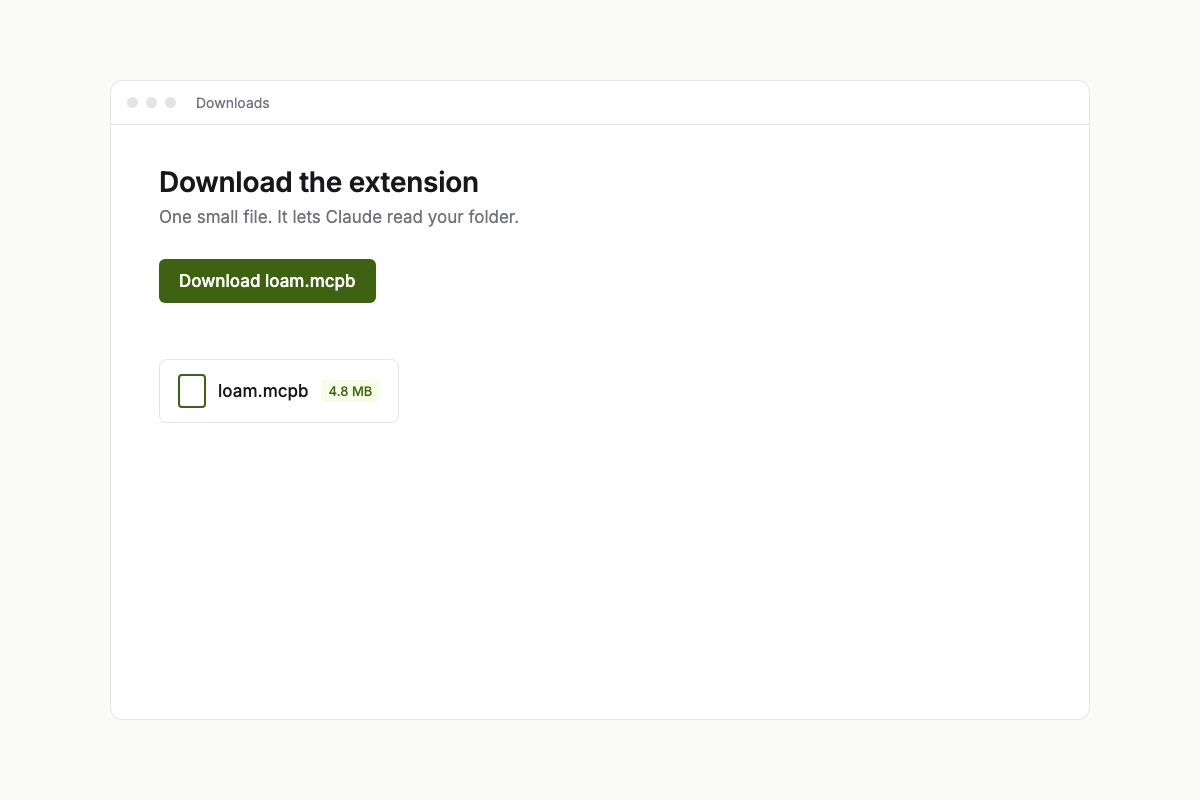
1. Download the extension
It is one small file called
loam.mcpb. It is the part that lets Claude read your folder.Every version, with its checksum, is on the releases page.
-
2. Open it with Claude Desktop
Double-click the file, or open Claude Desktop, go to Settings, then Extensions, and drag the
loam.mcpbfile into that window. When Claude asks whether to install it, choose Install.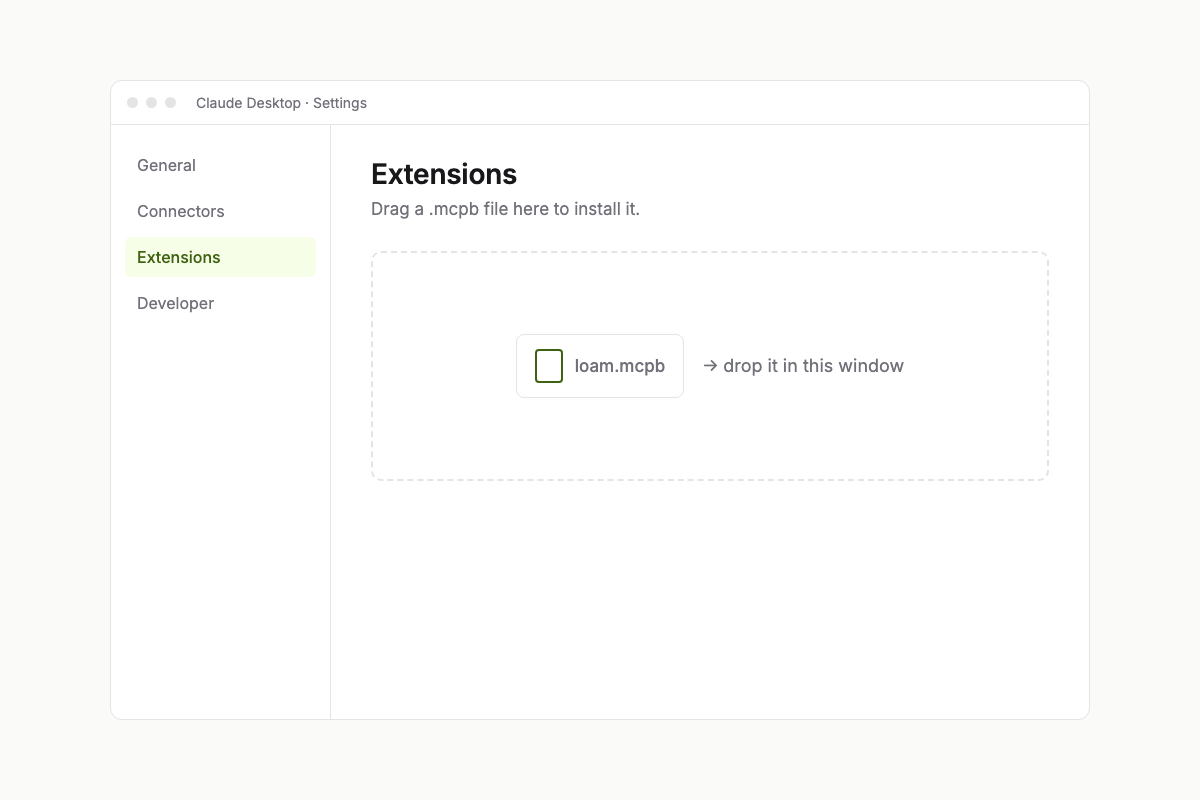
-
3. Choose your folder
Claude asks which folder Loam may use. Choose the folder you set up in the Loam app: the one that has a file called
AGENTS.mdinside. Then turn the extension on.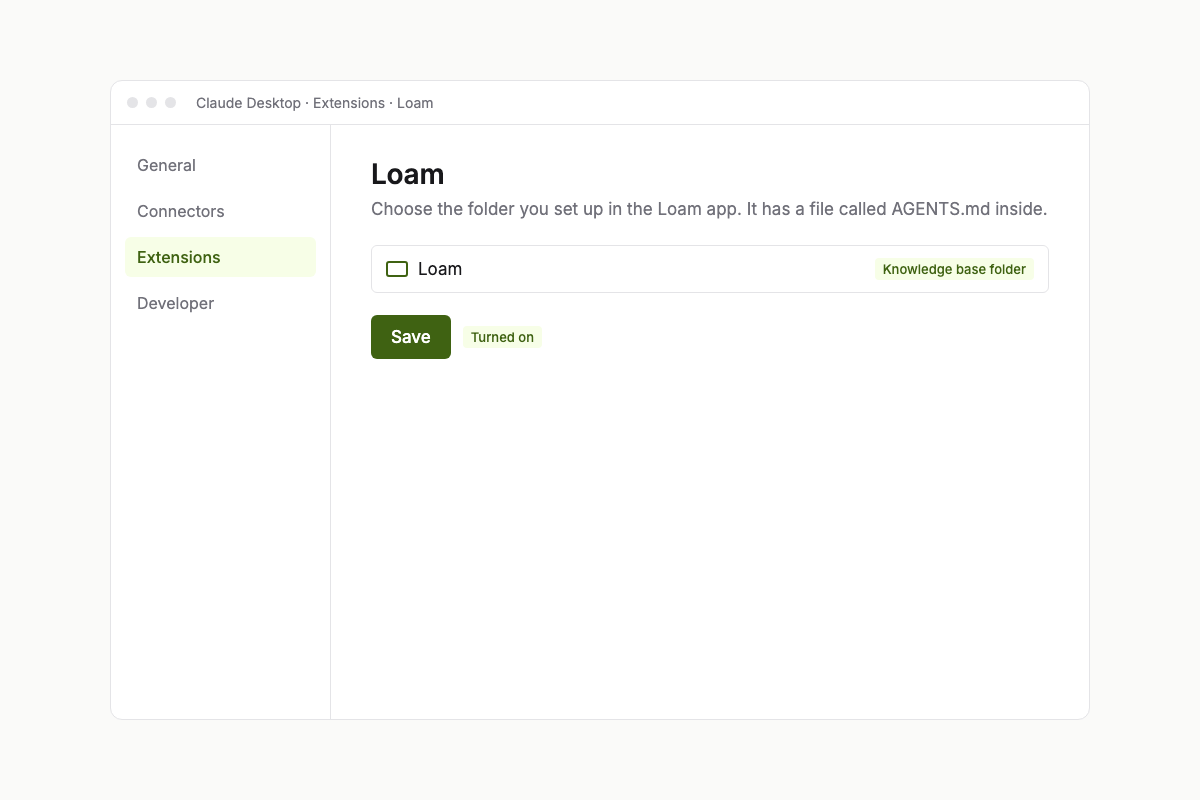
Claude Code, Cursor, Codex, VS Code, Gemini CLI, Windsurf and others
These agents start Loam with one command. You need Node version 22 or newer: run node --version in a terminal to check. The first start downloads the Loam server (about 15 MB) and can take up to a minute.
Open yours:
Claude Code One command in your terminal.
Replace /path/to/your/Loam with the full path of your Loam folder.
Run this in your terminal
claude mcp add --transport stdio --scope user loam -- npx -y loam-mcp --folder /path/to/your/Loam
“--scope user” makes Loam available in every project. The first start downloads the server (about 15 MB) and can take up to a minute.
Skills are picked up from the .claude/skills folder in your Loam folder after you press “Sync to agents” in the Skills screen.
Cursor A one-click link in the app, or a few lines in mcp.json.
Replace /path/to/your/Loam with the full path of your Loam folder.
Or add it by hand
File: ~/.cursor/mcp.json
{
  "mcpServers": {
    "loam": {
      "command": "npx",
      "args": [
        "-y",
        "loam-mcp",
        "--folder",
        "/path/to/your/Loam"
      ]
    }
  }
}
If the file already has other servers, add only the “loam” entry inside “mcpServers”. The first start downloads the server (about 15 MB) and can take up to a minute.
Cursor reads AGENTS.md from your folder by itself, and skills from .agents/skills after “Sync to agents”.
Codex One command, or a few lines in config.toml.
Replace /path/to/your/Loam with the full path of your Loam folder.
Run this in your terminal
codex mcp add loam -- npx -y loam-mcp --folder /path/to/your/Loam
The first start downloads the server (about 15 MB) and can take up to a minute.
Or add it to Codex’s config
File: ~/.codex/config.toml
[mcp_servers.loam]
command = "npx"
args = ["-y", "loam-mcp", "--folder", "/path/to/your/Loam"]
startup_timeout_sec = 60
The 60 seconds give the first start time to download the server.
Codex reads AGENTS.md from your folder by itself, and skills from .agents/skills after “Sync to agents”.
VS Code (Copilot) A one-click link in the app, or one command.
Replace /path/to/your/Loam with the full path of your Loam folder.
Or run this in your terminal
code --add-mcp '{"name":"loam","type":"stdio","command":"npx","args":["-y","loam-mcp","--folder","/path/to/your/Loam"]}'The first start downloads the server (about 15 MB) and can take up to a minute.
Or add it to a project’s .vscode/mcp.json
File: .vscode/mcp.json
{
  "servers": {
    "loam": {
      "type": "stdio",
      "command": "npx",
      "args": [
        "-y",
        "loam-mcp",
        "--folder",
        "/path/to/your/Loam"
      ]
    }
  }
}
Copilot reads AGENTS.md from your folder when it is the workspace, and skills from .agents/skills after “Sync to agents”.
Gemini CLI A few lines in settings.json.
Replace /path/to/your/Loam with the full path of your Loam folder.
Add this to Gemini CLI’s settings
File: ~/.gemini/settings.json
{
  "mcpServers": {
    "loam": {
      "command": "npx",
      "args": [
        "-y",
        "loam-mcp",
        "--folder",
        "/path/to/your/Loam"
      ],
      "timeout": 60000
    }
  }
}
If the file already has other servers, add only the “loam” entry inside “mcpServers”. The first start downloads the server (about 15 MB) and can take up to a minute.
Gemini CLI reads GEMINI.md from your folder, which points to AGENTS.md, and skills from .agents/skills after “Sync to agents”.
Windsurf A few lines in mcp_config.json.
Replace /path/to/your/Loam with the full path of your Loam folder.
Add this to Windsurf’s MCP config
File: ~/.codeium/windsurf/mcp_config.json
{
  "mcpServers": {
    "loam": {
      "command": "npx",
      "args": [
        "-y",
        "loam-mcp",
        "--folder",
        "/path/to/your/Loam"
      ]
    }
  }
}
Open it from Windsurf’s MCP settings if the path differs in your version. The first start downloads the server (about 15 MB) and can take up to a minute.
Windsurf reads AGENTS.md from your folder when it is the workspace, and skills from .agents/skills after “Sync to agents”.
Another agent Any agent that can run a local MCP server.
Replace /path/to/your/Loam with the full path of your Loam folder.
Add this to your agent’s MCP configuration
File: mcp.json (the name differs between agents)
{
  "mcpServers": {
    "loam": {
      "command": "npx",
      "args": [
        "-y",
        "loam-mcp",
        "--folder",
        "/path/to/your/Loam"
      ]
    }
  }
}
Most agents use this shape. The server is started with: npx -y loam-mcp --folder /path/to/your/Loam. The first start downloads the server (about 15 MB) and can take up to a minute.
Any agent that can run a local (stdio) MCP server works. Agents that cannot can still read your folder: they follow AGENTS.md, in read-only mode.
These are the Mac and Linux versions. The Loam app writes the exact command for your system (Windows included) with your folder path filled in, and gives one-click install links for Cursor and VS Code.
Any other agent that can run a local (stdio) MCP server works the same way. A chat in a web browser (ChatGPT, Gemini or claude.ai) cannot run a local server, so it cannot save to Loam. You can still give it a process or a skill: open it in the Loam app and press Copy for any chat, then paste the text into the chat. Any agent that opens your folder can also read it by following AGENTS.md.
Check that it works
Start a new chat in your agent and type:
Run my Loam onboarding interview
Your agent should start asking about your role and your day. If it doesn’t, check that Loam is switched on in the agent’s MCP settings and that the folder is the right one. Terminal users can run npx -y loam-mcp --check --folder <your folder>, which says what is wrong in plain words. Still stuck? Tell us on GitHub which agent and which computer you use.
What it can and can’t do
It only reads and writes inside the folder you chose. It makes no network requests, and the code is open on GitHub (the part that runs on your computer is in apps/mcp-server). Your agent only changes your files when you ask it to, and it shows you what changed.